Scrollbars that you style with CSS, for a container or for the whole page, with markers for places in the content.
ax-scroll-view is a scroll container and ax-scrollbar draws the scrollbars of the page. The bars are an overlay over the content, and scrolling stays native, so the wheel, touch, the keys, find in page and scrollIntoView work as usual. The bars take no pointer events of their own. The component finds the bar under the pointer by geometry, so the content under a hidden bar keeps its hover and clicks.
The default look is the Windows 8 (Modern UI) scrollbar, drawn from the numbers of the Windows 8.1 XAML templates and scaled by one token, the thickness. Every part of it is a shadow part, including the thumb, the buttons, the track, the markers and the hover card. This page has an example of each way to change it. You can style the parts with ::part() (Minimal, Windows 11, Cyber Punk), add a layer by configuration (the acrylic track of Windows 11), or replace the parts with classes of your own, a kit (Windows XP).
Markers are ticks on the track for places in the content, such as headings or search hits, and a card lists their labels when the pointer comes near. Move the pointer over a preview to show its bars. They fade out after a moment. Every look on this page is a stylesheet from the package demo, so each preview shows what the package draws.
Installation
npm install @ax-design/scrollbarand import it:
import { register } from '@ax-design/scrollbar';
register();
If you don't use a bundler, load the script instead:
<script src="https://unpkg.com/@ax-design/scrollbar/build/main.js"></script>
<script>AxScrollbar.register();</script>
Introduction
Scrolling stays native: the wheel, the touch and the keys scroll the view, and find in page reaches the content.
The bars are an overlay. They never take room from the content, and they show while the pointer moves over the view.
Setup
The bars are an overlay. They never take room from the content, and they show while the pointer moves over the view.
Every part of a bar is a shadow part: you style it with ::part(), or replace it with a kit.
Usage
Every part of a bar is a shadow part: you style it with ::part(), or replace it with a kit.
Scrolling stays native: the wheel, the touch and the keys scroll the view, and find in page reaches the content.
Styling
Scrolling stays native: the wheel, the touch and the keys scroll the view, and find in page reaches the content.
The bars are an overlay. They never take room from the content, and they show while the pointer moves over the view.
Markers
The bars are an overlay. They never take room from the content, and they show while the pointer moves over the view.
Every part of a bar is a shadow part: you style it with ::part(), or replace it with a kit.
Reference
Every part of a bar is a shadow part: you style it with ::part(), or replace it with a kit.
Scrolling stays native: the wheel, the touch and the keys scroll the view, and find in page reaches the content.
Windows 8
With no style at all the bars are the Windows 8 scrollbar. It has a 17px bar, a square thumb, 33px buttons with a chevron, a pale track, flat ticks for markers and a square card. Wrap the content in ax-scroll-view and give the element a height. Put padding on the content and keep it clear of the bar with --ax-scrollbar-vertical-size, which the component writes on the view.
The drawing is sized from --ax-scrollbar-thickness. The thumb and the hovered marker fill the bar, and the buttons, the arrows and the markers are the same numbers scaled by thickness / 17px. Drag the slider to 8px, 17px and 24px and the whole bar follows.
The hide attribute is a list of the parts a look never shows. A hidden part takes no room and no input, and each switch below adds one part to the list. The corner is the square where the two bars meet, so this example scrolls both ways. The markers are the headings, and a hover over one opens the card.
Try it
<ax-scroll-view marker-selector="h2" hide="" track-click="page" style="height: 420px">
  <article>
    <h2>Introduction</h2>
    ...
  </article>
</ax-scroll-view>ax-scroll-view {
--ax-scrollbar-thickness: 17px;
}
ax-scroll-view > article {
padding-right: var(--ax-scrollbar-vertical-size);
}Introduction
Scrolling stays native: the wheel, the touch and the keys scroll the view, and find in page reaches the content.
The bars are an overlay. They never take room from the content, and they show while the pointer moves over the view.
Setup
The bars are an overlay. They never take room from the content, and they show while the pointer moves over the view.
Every part of a bar is a shadow part: you style it with ::part(), or replace it with a kit.
Usage
Every part of a bar is a shadow part: you style it with ::part(), or replace it with a kit.
Scrolling stays native: the wheel, the touch and the keys scroll the view, and find in page reaches the content.
Styling
Scrolling stays native: the wheel, the touch and the keys scroll the view, and find in page reaches the content.
The bars are an overlay. They never take room from the content, and they show while the pointer moves over the view.
Markers
The bars are an overlay. They never take room from the content, and they show while the pointer moves over the view.
Every part of a bar is a shadow part: you style it with ::part(), or replace it with a kit.
Reference
Every part of a bar is a shadow part: you style it with ::part(), or replace it with a kit.
Scrolling stays native: the wheel, the touch and the keys scroll the view, and find in page reaches the content.
Minimal
A whole look made of CSS on the default parts. It has a thumb that is 4 units thick at rest and widens to 10 while the bar is engaged, round markers, no track and no buttons. A unit is a fourteenth of the bar thickness, so the slider scales the whole bar. Each part of the bar is a shadow part, and ::part(thumb) matches the thumb of both bars. Host tokens such as --ax-scrollbar-thickness go on the element or an ancestor, and look inputs such as --ax-scrollbar-part-color and the shape properties of Surface go on the part.
A rule of the page on ::part(x) wins over the part's own CSS whatever its specificity, and it replaces the default value of every property it sets, in every state of x. The state rules of the default theme for that property stop applying, so the states that should differ are written again after the rule, in the order rest, current, on thumb, hover, pressed. That is why the thumb rule below is followed by thumb-engaged, thumb-hover and thumb-pressed. What a rule does not set keeps the default value.
The hot zone is the band along the outer edge of a bar where the pointer already counts as near the bar. Its depth is --ax-scrollbar-hotzone, and a percentage is a share of the thickness. While the slider is not at 0, the band is drawn in red over the example.
Try it
<ax-scroll-view class="minimal" hide="button" touch="bar" marker-selector="h2">
  ...
</ax-scroll-view>.minimal {
--ax-scrollbar-thickness: 14px;
--minimal-unit: calc(var(--ax-scrollbar-thickness) / 14);
--ax-scrollbar-padding: calc(var(--minimal-unit) * 2);
--ax-scrollbar-thumb-min-length: calc(var(--minimal-unit) * 32);
--ax-scrollbar-button-length: auto;
--ax-scrollbar-hotzone: 200%;
--ax-scrollbar-state-smoothing: 100ms;
--ax-scrollbar-fade-in-duration: 0s;
--ax-scrollbar-fade-out-duration: 0s;
--ax-scrollbar-slide-distance: calc(var(--minimal-unit) * 3);
--ax-scrollbar-card-delay: 0s;
--ax-scrollbar-card-slide-duration: 250ms;
--ax-scrollbar-card-slide-distance: 8px;
}
.minimal::part(thumb),
.minimal::part(button),
.minimal::part(track),
.minimal::part(corner),
.minimal::part(marker),
.minimal::part(card) {
--ax-scrollbar-part-fill-clip: border-box;
}.minimal::part(thumb) {
--ax-radius: 50%;
--ax-scrollbar-part-size: calc(var(--minimal-unit) * 4);
--ax-scrollbar-part-color: rgba(0, 0, 0, 0.4);
--ax-scrollbar-part-border-color: transparent;
}
.minimal::part(thumb-engaged) {
--ax-scrollbar-part-size: calc(var(--minimal-unit) * 10);
}
.minimal::part(thumb-hover) {
--ax-scrollbar-part-size: calc(var(--minimal-unit) * 10);
--ax-scrollbar-part-color: rgba(0, 0, 0, 0.6);
}
.minimal::part(thumb-pressed) {
--ax-scrollbar-part-size: calc(var(--minimal-unit) * 10);
--ax-scrollbar-part-color: rgba(0, 0, 0, 0.7);
}
.minimal::part(button) {
--ax-scrollbar-part-color: transparent;
--ax-scrollbar-part-glyph-color: rgba(0, 0, 0, 0.5);
--ax-scrollbar-glyph-width: 50%;
--ax-scrollbar-glyph-height: 25%;
--ax-scrollbar-glyph-thickness: 12.5%;
--ax-scrollbar-glyph-offset: auto;
}.minimal::part(button-hover) {
--ax-scrollbar-part-glyph-color: rgba(0, 0, 0, 0.7);
}
.minimal::part(button-pressed) {
--ax-scrollbar-part-glyph-color: rgba(0, 0, 0, 0.9);
}
.minimal::part(track),
.minimal::part(corner) {
--ax-scrollbar-part-color: transparent;
}
.minimal::part(marker) {
--ax-radius: 50%;
--ax-scrollbar-part-size: calc(var(--minimal-unit) * 4);
--ax-scrollbar-part-thickness: auto;
--ax-scrollbar-part-color: rgba(0, 0, 0, 0.45);
}
.minimal::part(marker-on-thumb) {
--ax-scrollbar-part-color: rgba(255, 255, 255, 0.9);
}
.minimal::part(marker-hover) {
--ax-scrollbar-part-size: calc(var(--minimal-unit) * 7);
--ax-scrollbar-part-color: rgba(0, 0, 0, 0.8);
}.minimal::part(card) {
--ax-radius: 4px;
--ax-border-width: 0px;
--ax-scrollbar-part-color: rgb(255, 255, 255);
--ax-scrollbar-part-border-color: transparent;
--elevation-depth: 8;
--elevation-color: initial;
color: rgb(34, 34, 34);
font-family: inherit;
font-size: 12px;
padding: 6px 10px;
max-width: 240px;
transition: opacity 150ms linear, transform 250ms cubic-bezier(0.1, 0.9, 0.2, 1);
}
.minimal::part(card-exit) {
transition-duration: 100ms;
}@media (prefers-color-scheme: dark) {
.minimal::part(thumb) {
--ax-scrollbar-part-color: rgba(255, 255, 255, 0.4);
}
.minimal::part(thumb-hover) {
--ax-scrollbar-part-color: rgba(255, 255, 255, 0.6);
}
.minimal::part(thumb-pressed) {
--ax-scrollbar-part-color: rgba(255, 255, 255, 0.7);
}
.minimal::part(button) {
--ax-scrollbar-part-glyph-color: rgba(255, 255, 255, 0.5);
}
.minimal::part(button-hover) {
--ax-scrollbar-part-glyph-color: rgba(255, 255, 255, 0.7);
}
.minimal::part(button-pressed) {
--ax-scrollbar-part-glyph-color: rgba(255, 255, 255, 0.9);
}
.minimal::part(marker) {
--ax-scrollbar-part-color: rgba(255, 255, 255, 0.45);
}
.minimal::part(marker-on-thumb) {
--ax-scrollbar-part-color: rgba(0, 0, 0, 0.9);
}
.minimal::part(marker-hover) {
--ax-scrollbar-part-color: rgba(255, 255, 255, 0.8);
}
.minimal::part(card) {
--ax-scrollbar-part-color: rgb(43, 43, 43);
color: rgb(240, 240, 240);
}}Acrylic track
The track blurs what scrolls under it. The swatches pass under the bar to show it.
Fluent
One layer is added by configuration. The rest is the default parts, styled with ::part().
Variants
Default hides the bar until the pointer is over it. Minimal is the thumb alone. Full never hides.
Markers
Dashes on the track mark the headings. Rest the pointer on one to read it.
Done
Scroll a little more.
Windows 11
The WinUI 3 scrollbar. It is a 2px line at rest that grows into a 6px thumb, an acrylic track and arrow buttons under the pointer. It is the default parts styled with ::part() plus one layer added by configuration. track-layers="scrollbar-fill acrylic" names the layers the track draws with, in paint order, and the acrylic layer comes from @ax-design/acrylic. Naming layers replaces the list, so scrollbar-fill stays in it. The swatches pass under the track so that you can see the acrylic blur them.
The three variants differ in attributes, and the stylesheet reads data-variant for what attributes cannot set. Default draws the track and the buttons only while the bar is engaged. Minimal is the thumb alone with touch="bar", shown by the pointer at the bar or by scrolling (indicator="near"). Full is the always expanded bar of Settings, Accessibility (indicator="pinned").
Try it
<ax-scroll-view class="win11"
  data-variant="default"
  track-layers="scrollbar-fill acrylic"
  hide="..." indicator="..." touch="...">
  ...
</ax-scroll-view>import { registerAcrylicLayer } from '@ax-design/acrylic';
registerAcrylicLayer();
// What a variant sets as attributes; the rest is CSS.
const variants = {
default: { hide: '', indicator: 'auto', touch: 'indicator' },
minimal: { hide: 'button track corner', indicator: 'near', touch: 'bar' },
full: { hide: '', indicator: 'pinned', touch: 'indicator' }
};
const view = document.querySelector('.win11');
const variant = variants['default'];
view.dataset.variant = 'default';
view.setAttribute('hide', variant.hide);
view.setAttribute('indicator', variant.indicator);
view.setAttribute('touch', variant.touch);.win11 {
--ax-scrollbar-thickness: 12px;
--ax-scrollbar-button-length: 15px;
--ax-scrollbar-expand-delay: 400ms;
--ax-scrollbar-contract-delay: 500ms;
/* the acrylic of the track */
--acrylic-tint-color: #fcfcfc;
--acrylic-tint-opacity: 0.85;
--acrylic-blur: 30px;
}
/* 2px at rest, 6px engaged, hovered or pressed */
.win11::part(thumb) {
--ax-radius: 50%;
--ax-scrollbar-part-size: 2px;
--ax-scrollbar-part-color: rgba(0, 0, 0, 0.447);
}
.win11::part(thumb-engaged),
.win11::part(thumb-hover),
.win11::part(thumb-pressed) {
--ax-scrollbar-part-size: 6px;
}
/* invisible until the bar is engaged */
.win11::part(track) {
--ax-radius: 6px;
--ax-scrollbar-part-color: transparent;
--ax-scrollbar-part-opacity: 0;
}
.win11::part(track-engaged) {
--ax-scrollbar-part-opacity: 1;
}Shape
Every part takes its outline from the Shape system: a corner shape and a radius, set on the part.
Bevel
A bevel of radius r cuts r off along both sides of a corner. Two opposite corners are cut, the others stay square.
Diamonds
The markers are squares with all four corners bevelled at the midpoint of their sides.
Glow
The card is lit by the elevation layer, in a magenta --elevation-color.
Night
Scroll on, and rest the pointer on a diamond.
Cyber Punk
Every part takes its outline from the Shape system of @ax-design/shape, which gives it a corner shape and a radius set on the part. Here the thumb, the track, the corner and the card use --ax-corner-shape: bevel, which cuts the radius off along both sides of a corner. Only two opposite corners are cut, and the other two are made square with the per-corner radii --ax-top-right-radius and --ax-bottom-left-radius.
The markers are diamonds. A bevel whose radius is 50% cuts each corner at the midpoint of its sides at any size, and a part thickness of auto keeps the marker square as it grows. The glow of the card is the elevation layer, where --elevation-depth is its reach and --elevation-color its colour, here magenta. There is no kit and no subclass, and the bar is the default parts.
Try it
<ax-scroll-view class="cyber" snap touch="bar" hide="button" marker-selector="h2">
  ...
</ax-scroll-view>.cyber {
--ax-scrollbar-thickness: 16px;
--ax-scrollbar-padding: 3px;
--ax-scrollbar-thumb-min-length: 40px;
--ax-scrollbar-button-length: 16px;
--ax-scrollbar-state-smoothing: 40ms;
--ax-scrollbar-slide-distance: 6px;
--ax-scrollbar-fade-in-duration: 0s;
--ax-scrollbar-fade-out-duration: 0s;
--ax-scrollbar-hotzone: 200%;
--ax-scrollbar-card-delay: 150ms;
--ax-scrollbar-card-slide-duration: 250ms;
--ax-scrollbar-card-slide-distance: 8px;
}
.cyber::part(thumb),
.cyber::part(button),
.cyber::part(track),
.cyber::part(corner),
.cyber::part(marker),
.cyber::part(card) {
--ax-scrollbar-part-fill-clip: border-box;
}.cyber::part(track) {
--ax-scrollbar-part-color: rgba(0, 229, 255, 0.08);
--ax-radius: 5px;
--ax-corner-shape: bevel;
--ax-top-right-radius: 0px;
--ax-bottom-left-radius: 0px;
}
.cyber::part(thumb) {
--ax-scrollbar-part-size: 8px;
--ax-radius: 4px;
--ax-corner-shape: bevel;
--ax-top-right-radius: 0px;
--ax-bottom-left-radius: 0px;
--ax-border-width: 1px;
--ax-scrollbar-part-color: #12a9c6;
--ax-scrollbar-part-border-color: rgba(0, 229, 255, 0);
}
.cyber::part(thumb-hover) {
--ax-scrollbar-part-size: 10px;
--ax-scrollbar-part-color: #3df0ff;
--ax-scrollbar-part-border-color: #b8fbff;
}
.cyber::part(thumb-pressed) {
--ax-scrollbar-part-size: 10px;
--ax-scrollbar-part-color: #ff2bd6;
--ax-scrollbar-part-border-color: #ffd0f6;}
.cyber::part(button) {
--ax-radius: 3px;
--ax-corner-shape: bevel;
--ax-top-right-radius: 0px;
--ax-bottom-left-radius: 0px;
--ax-border-width: 1px;
--ax-scrollbar-part-color: rgba(0, 229, 255, 0.1);
--ax-scrollbar-part-border-color: rgba(0, 229, 255, 0.4);
--ax-scrollbar-part-glyph-color: #12a9c6;
--ax-scrollbar-glyph-width: 6px;
--ax-scrollbar-glyph-height: 4px;
--ax-scrollbar-glyph-thickness: 1.6px;
--ax-scrollbar-glyph-offset: auto;
}
.cyber::part(button-hover) {
--ax-scrollbar-part-color: rgba(0, 229, 255, 0.28);
--ax-scrollbar-part-border-color: #3df0ff;
--ax-scrollbar-part-glyph-color: #b8fbff;
}
.cyber::part(button-pressed) {
--ax-scrollbar-part-color: #ff2bd6;
--ax-scrollbar-part-border-color: #ffd0f6;
--ax-scrollbar-part-glyph-color: #1a0014;
}.cyber::part(corner) {
--ax-radius: 5px;
--ax-corner-shape: bevel;
--ax-top-right-radius: 0px;
--ax-bottom-left-radius: 0px;
--ax-scrollbar-part-color: rgba(0, 229, 255, 0.1);
}
.cyber::part(marker) {
--ax-scrollbar-part-size: 7px;
--ax-scrollbar-part-thickness: auto;
--ax-radius: 50%;
--ax-corner-shape: bevel;
--ax-scrollbar-part-color: #c4309f;
--ax-scrollbar-part-opacity: 0.5;
}
.cyber::part(marker-engaged) {
--ax-scrollbar-part-opacity: 1;
}
.cyber::part(marker-current) {
--ax-scrollbar-part-size: 8px;
--ax-scrollbar-part-color: #ff4fe0;
--ax-scrollbar-part-opacity: 0.8;
}
.cyber::part(marker-on-thumb) {
--ax-scrollbar-part-color: #04222b;
--ax-scrollbar-part-opacity: 1;}
.cyber::part(marker-hover) {
--ax-scrollbar-part-size: 10px;
--ax-scrollbar-part-color: #fff;
}
.cyber::part(marker-on-thumb marker-hover) {
--ax-scrollbar-part-color: #fff;
}
.cyber::part(card) {
--ax-scrollbar-part-color: #0c0a1f;
--ax-scrollbar-part-border-color: #ff2bd6;
--ax-border-width: 1px;
--ax-radius: 8px;
--ax-corner-shape: bevel;
--ax-top-right-radius: 0px;
--ax-bottom-left-radius: 0px;
--elevation-depth: 8;
color: #b8fbff;
font-family: "Share Tech Mono", ui-monospace, "Cascadia Mono", Menlo, Consolas, monospace;
font-size: 12px;
max-width: 240px;
transition: opacity 150ms linear, transform 250ms cubic-bezier(0.1, 0.9, 0.2, 1);
padding: 7px 13px 8px;
--elevation-color: rgba(255, 43, 214, 0.35);
}.cyber::part(card-exit) {
transition-duration: 100ms;
}Version 2.4
The list view keeps its place when the window is resized. Selected rows stay selected.
Version 2.3
Search results can be sorted by date or by name. The choice is remembered.
Table of values
name          region    count  unit    owner
north-depot   eastern    1204  crates  warehouse-a
south-depot   western     877  crates  warehouse-b
harbour-store coastal      56  pallets warehouse-c
Version 2.2
Fixed a case where the first row hid under the header after a scroll.
Version 2.1
New option to keep the header row visible while the body scrolls.
Earlier versions
Earlier notes are kept in the archive.
Windows XP
A kit replaces the parts themselves with classes of your own. Each kind has a contract class that draws nothing, and a kit class extends it and carries its look in its own shadow CSS, so nothing of the default look has to be switched off. The Windows XP (Luna) scrollbar ships with the package as such a kit. It has a raised thumb and arrow buttons with grip lines, an etched track, XP info tips and no fades.
Import it from the subpath, define it once and pick it with kit="luna". Its colours come from a scheme, which is a class on the scroll view or on any ancestor, because custom properties inherit into the parts. adoptLunaSchemes() adds the stylesheet of the seven schemes to the document once. Blue, Olive Green and Silver are the schemes of Windows XP.
Try it
import { register } from '@ax-design/scrollbar';
import { defineLunaKit, adoptLunaSchemes } from '@ax-design/scrollbar/kits/luna';

register();
defineLunaKit(); // defines the kit "luna"
adoptLunaSchemes(); // adds the scheme classes to the document<div class="luna-blue">
<ax-scroll-view kit="luna" snap touch="bar" vertical="always" style="height: 420px">
...
</ax-scroll-view>
</div>Version 2.4
The list view keeps its place when the window is resized. Selected rows stay selected.
Version 2.3
Search results can be sorted by date or by name. The choice is remembered.
Table of values
name          region    count  unit    owner
north-depot   eastern    1204  crates  warehouse-a
south-depot   western     877  crates  warehouse-b
harbour-store coastal      56  pallets warehouse-c
Version 2.2
Fixed a case where the first row hid under the header after a scroll.
Version 2.1
New option to keep the header row visible while the body scrolls.
Earlier versions
Earlier notes are kept in the archive.
Custom Luna scheme
A scheme is a class of custom properties, so a scheme of your own is a class that sets them. The tones are colours. --luna-accent, --luna-accent-light and --luna-accent-deep colour the thumb and the buttons, --luna-glyph the arrows and the grip, --luna-face the track and the corner, and --luna-disabled the disabled parts. The numbers are contrast values from 0 to 1, namely --luna-highlight, --luna-shade, --luna-gloss, --luna-depth, --luna-hot, --luna-press and --luna-etch.
Every colour of the parts is a tone with white and black laid over it by those numbers, so a new scheme needs its tones and the numbers of the scheme it resembles. Copy a class of lunaSchemes and change them. This one is green. The controls write onto the stage, over the class. The face of the thumb and the buttons is mostly --luna-accent-light, so that is the colour to change first. Gloss and depth set how much white and black the faces get.
Try it
.luna-moss {
  --luna-light: top-left; --luna-diagonal: 1; --luna-glint: 0;
  --luna-face: #e4e6d4; --luna-disabled: #f0f0e6;
  --luna-highlight: 1; --luna-shade: 0.72; --luna-gloss: 0.182;
  --luna-depth: 0.196; --luna-hot: 0.624; --luna-press: 0.675;
  --luna-etch: 0; --luna-relief: 1;
  --luna-accent: #a9c98b; --luna-accent-light: #d3e6bf;
  --luna-accent-deep: #4a8a1f; --luna-glyph: #3f5230;
}<div class="luna-moss">
<ax-scroll-view kit="luna" touch="bar">...</ax-scroll-view>
</div>Introduction
Scrolling stays native: the wheel, the touch and the keys scroll the view, and find in page reaches the content.
Setup
The bars are an overlay. They never take room from the content, and they show while the pointer moves over the view.
Install
Every part of a bar is a shadow part: you style it with ::part(), or replace it with a kit.
Usage
Scrolling stays native: the wheel, the touch and the keys scroll the view, and find in page reaches the content.
Notes
The bars are an overlay. They never take room from the content, and they show while the pointer moves over the view.
Tips
Tricks
Reference
Scrolling stays native: the wheel, the touch and the keys scroll the view, and find in page reaches the content.
The bars are an overlay. They never take room from the content, and they show while the pointer moves over the view.
Every part of a bar is a shadow part: you style it with ::part(), or replace it with a kit.
Markers
With marker-selector, every matching element becomes a marker on the track, here each heading. Its id is the id of the element and its label is its text. The matches are read again when the content adds or removes nodes, and refreshMarkers() reads them after any other change. Press a marker to scroll it into the view, or rest the pointer on it and after --ax-scrollbar-card-delay a card opens with the labels.
Markers closer than --ax-scrollbar-marker-spacing share one mark, and its card lists all of them, one per line. Raise the spacing and the nearest headings join. marker-align decides where a marker scrolls to and sits, either its center or its start edge, and marker-axis puts the markers on the horizontal bar. Style the card on ::part(card) with real CSS for its text.
Try it
<ax-scroll-view marker-selector="h2" marker-align="center" style="height: 420px">
  <h2>Introduction</h2>
  ...
</ax-scroll-view>ax-scroll-view {
--ax-scrollbar-marker-spacing: 6px;
--ax-scrollbar-card-delay: 400ms;
}
ax-scroll-view::part(card) {
--ax-scrollbar-part-color: #fff;
--ax-scrollbar-part-border-color: #ccc;
--ax-border-width: 1px;
--elevation-depth: 8;
color: #222;
font: 12px/1.4 system-ui;
padding: 6px 10px;
}Heading A
Heading B
Heading C
Markers from script
The markers property takes elements, a NodeList, marker objects or a mix, and it wins over marker-selector while it holds a list, even an empty one. null gives control back to the selector. A marker object has an id, a label, a position in scroll coordinates (or an element, whose start edge is the position), an axis and data of your own for the card of a kit. Use it for places that are not elements, such as search hits.
The component dispatches markerenter, markerleave and markeractivate on the element. They bubble, and detail has the marker of the mark and all the markers that share it. Cancel markeractivate with preventDefault() to do the jump yourself. The line under the view shows the last event.
Try it
const view = document.querySelector('ax-scroll-view');

// 'markers property' is in charge.
view.markers = [
  { id: 'start', label: 'Start', position: 0 },
  { id: 'a', label: 'Result 1 (4 hits)', position: 320, data: { hits: 4 } },
  { id: 'setup', label: 'Setup', element: document.getElementById('setup') },
  document.getElementById('summary')
];
view.markers = null; // back to marker-selectorview.addEventListener('markeractivate', (event) => {
// Cancel the jump and scroll to it yourself.
event.preventDefault();
const { marker, markers } = event.detail;
view.scrollTo({ top: marker.position, behavior: 'smooth' });
});Introduction
Scrolling stays native: the wheel, the touch and the keys scroll the view, and find in page reaches the content.
The bars are an overlay. They never take room from the content, and they show while the pointer moves over the view.
Setup
The bars are an overlay. They never take room from the content, and they show while the pointer moves over the view.
Every part of a bar is a shadow part: you style it with ::part(), or replace it with a kit.
Usage
Every part of a bar is a shadow part: you style it with ::part(), or replace it with a kit.
Scrolling stays native: the wheel, the touch and the keys scroll the view, and find in page reaches the content.
Styling
Scrolling stays native: the wheel, the touch and the keys scroll the view, and find in page reaches the content.
The bars are an overlay. They never take room from the content, and they show while the pointer moves over the view.
Markers
The bars are an overlay. They never take room from the content, and they show while the pointer moves over the view.
Every part of a bar is a shadow part: you style it with ::part(), or replace it with a kit.
Reference
Every part of a bar is a shadow part: you style it with ::part(), or replace it with a kit.
Scrolling stays native: the wheel, the touch and the keys scroll the view, and find in page reaches the content.
Touch
touch="indicator", the default, shows the thumb alone as a panning indicator that takes no touch input.
touch="bar" makes the bars look and work on touch as they do with a mouse.
With the indicator the buttons, the track and the corner are left out while it shows and while it fades out, and the page scrolls under a finger as usual. With the bar, a finger that comes down on a bar or in its hot zone belongs to the bar and decides after 5px. Steeply along the bar it drags, relative to where it is, and across it nothing more happens. A quick tap glides to the tapped place or activates the marker under it.
The hovered marker and its card stay for --ax-scrollbar-touch-idle-delay after the finger lifts. Style the touch indicator on its own with the attribute the component writes, ax-scroll-view[last-indicator="touch"]::part(thumb), which stays set while the bars fade out. Try it with a finger. With a pointer this example behaves as it does with the mouse.
Try it
<ax-scroll-view touch="indicator" marker-selector="h2">
  ...
</ax-scroll-view>ax-scroll-view {
--ax-scrollbar-touch-idle-delay: 500ms;
}
/* the panning indicator, a thin thumb */
ax-scroll-view[last-indicator="touch"]::part(thumb) {
--ax-scrollbar-part-size: 2px;
}Text only
A
Scrolling stays native: the wheel, the touch and the keys scroll the view, and find in page reaches the content.
The bars are an overlay. They never take room from the content, and they show while the pointer moves over the view.
Every part of a bar is a shadow part: you style it with ::part(), or replace it with a kit.
With a button
B
Scrolling stays native: the wheel, the touch and the keys scroll the view, and find in page reaches the content.
The bars are an overlay. They never take room from the content, and they show while the pointer moves over the view.
Keyboard focus
The bars are for the pointer. They and the cards are aria-hidden, have no role and are not in the tab order, so the accessibility tree shows only the content. Give links or buttons for the same destinations as the markers. The element has no role or label of its own, so add them as for any element, as role="region" and aria-label below.
The viewport is a real scroll container and takes focus (tabindex="0") only while nothing inside it can. A text-only region stays scrollable by keys, and a region with links, buttons or fields adds no tab stop of its own, because focus goes into the content and the arrow and page keys scroll from there. The choice follows changes of the content and of the attributes that decide focus. Disable the button and the second view becomes a tab stop.
With forced colors (forced-colors: active) the overlay is hidden and the native scrollbars come back, and so they do when printing. With prefers-reduced-motion: reduce there is no glide and no thumb lag, parts change look at once, and the default card drops its movement and closes by itself. The Accessibility column of this page shows both.
Try it
<ax-scroll-view role="region" aria-label="Release notes" style="height: 420px">
  <article>...</article>
</ax-scroll-view>/* Forced colors and print bring the native bars back, so keep
no extra room for the overlay then. */
@media (forced-colors: active) {
ax-scroll-view > article {
padding-right: 0;
}
}
/* Reduced motion: the component drops its own motion; drop yours. */
@media (prefers-reduced-motion: reduce) {
ax-scroll-view::part(card) {
transition: none;
}
}Slab
Scrolling stays native: the wheel, the touch and the keys scroll the view, and find in page reaches the content.
The bars are an overlay. They never take room from the content, and they show while the pointer moves over the view.
Kit
The bars are an overlay. They never take room from the content, and they show while the pointer moves over the view.
Every part of a bar is a shadow part: you style it with ::part(), or replace it with a kit.
Thumb
Every part of a bar is a shadow part: you style it with ::part(), or replace it with a kit.
Scrolling stays native: the wheel, the touch and the keys scroll the view, and find in page reaches the content.
Writing a kit
A kit is a named set of part classes. defineScrollbarKit(name, kit) takes a class for any of thumb, button, track, trackPiece, corner, marker and card, and a default for hide. Each class extends the contract class of its kind, which draws nothing (AxScrollbarThumb and the others), or the default class of the kind (AxScrollbarDefaultThumb), and carries its look in its own shadow root as static styles. The bars keep deciding where a part sits along the bar and how long it is. The kinds a kit leaves out are the default classes.
A class reads its state in the CSS as attributes of the host, such as :host([hover]), :host([pressed]), :host([axis="horizontal"]), :host([direction="start"]), :host([disabled]) and :host([rtl]), or in script as partState with stateChanged(). The thumb below is one class, and the colour and the inset are custom properties that inherit into it. An author's ::part() rules still win over the CSS of a kit.
A class that does not extend the contract class of its kind throws a TypeError before anything is defined, so a bad kit leaves nothing behind, and defining a name twice throws as well. In TypeScript the fields of ScrollbarKit are typed as PartClass, so a wrong class does not compile. The line under the view is the error the page got when it defined a kit with a thumb that is not a thumb.
Try it
import { AxScrollbarThumb, defineScrollbarKit } from '@ax-design/scrollbar';

class SlabThumb extends AxScrollbarThumb {
  static styles = `
    :host { background: rgb(136, 136, 136); margin: 0 3px; }
    :host([axis="horizontal"]) { margin: 3px 0; }
    :host([pressed]) { background: rgb(0, 120, 215); }
  `;
}

defineScrollbarKit('slab', { thumb: SlabThumb, hide: '' });<ax-scroll-view kit="slab" style="height: 420px">...</ax-scroll-view>import { isPartClass } from '@ax-design/scrollbar';
isPartClass(SlabThumb, 'thumb'); // true
// The type check: not a thumb.
defineScrollbarKit('bad', { thumb: class {} });
// TypeError, and nothing is definedSection 1
Scrolling stays native, so the keys, the wheel and find in page work as usual.
Section 2
Scrolling stays native, so the keys, the wheel and find in page work as usual.
Section 3
Scrolling stays native, so the keys, the wheel and find in page work as usual.
Accessibility
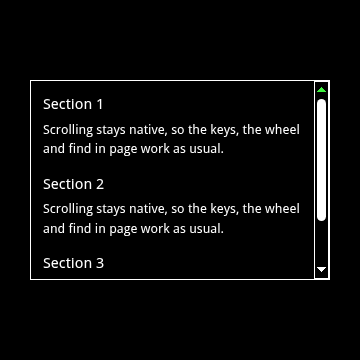
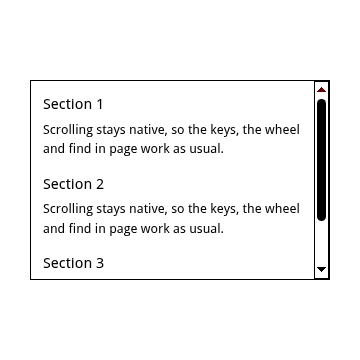
Keyboard: The viewport of ax-scroll-view takes focus with Tab while nothing inside it can take focus, and the arrow, Page Up, Page Down, Home and End keys scroll it. A view with links, buttons or fields adds no tab stop of its own: focus goes into the content, and the keys scroll from there. The bars are not in the tab order: markers are for the pointer, so give links or buttons for the same places.
Screen readers: The bars and the cards are hidden from assistive technology. Name the view as a region, as in the code, so the content has a name when it takes focus.
High contrast (forced colors): The overlay is not drawn, and the native scrollbars of the browser come back, so the bars stay visible.
Reduced motion: The bars take their end state at once: no glide, no lag of the thumb, and the card does not move. The card closes by itself after a short delay.
Try it: in Chrome or Edge, open DevTools, then Rendering, and emulate the CSS media features prefers-reduced-motion, forced-colors or prefers-reduced-transparency. Or turn on the setting of your system: Show animations, Contrast themes and Transparency effects on Windows; Reduce motion, Increase contrast and Reduce transparency on macOS.
Try it
<ax-scroll-view role="region" aria-label="Article" style="height: 420px">
  <article>...</article>
</ax-scroll-view>
Reference
vertical attribute
auto | always | hidden, default auto
auto: the bar shows while there is something to scroll. always: it always shows, disabled when nothing scrolls. hidden: it never shows.
horizontal attribute
auto | always | hidden, default auto
As vertical, for the horizontal bar.
hide attribute
list of parts, default (empty)
The parts a look never shows, as a space-separated list of thumb, button, track (with its pieces), track-piece, corner, marker and card. A hidden part takes no room and no input. Unknown names are ignored. Even an empty value overrides the default, and a kit gives its own default.
indicator attribute
auto | near | pinned, default auto
auto: the bars show on every move over the scroller. near: only for a pointer at a bar, or while scrolling (always so on ax-scrollbar). pinned: the bars always show.
track-click attribute
page | jump, default page
A press on the track pages toward the pointer, repeating while held, or with jump scrolls to the pointer.
touch attribute
indicator | bar, default indicator
What the bars are on touch. indicator shows the thumb alone as a panning indicator that takes no input and leaves out the buttons, the track and the corner. bar makes the bars look and work as they do with a mouse, so a finger on a bar drags it and a tap on the track glides to the tapped place.
snap attribute
boolean, default false
Thumb edges and markers on whole device pixels, for looks that reproduce a desktop control. Leave it off for vector looks.
suspended attribute
boolean, default false
Fades the bars out and makes them ignore input, for a lightbox over the page. Remove it and they show again.
kit attribute
kit name
Builds the parts with the kit of that name, made with defineScrollbarKit() or defineLunaKit(). A change of kit rebuilds the bars, and a kit may be defined after the element.
marker-selector attribute
CSS selector
Makes a marker for each matching element, with the id of the element and its text as the label.
marker-axis attribute
vertical | horizontal, default vertical
The axis of the markers made from elements.
marker-align attribute
center | start, default center
Where a marker scrolls to, and where it sits on the track.
thumb-layers attribute
layer names
The layers a kind of part draws with, in paint order. Likewise button-layers, track-layers, track-piece-layers, corner-layers, marker-layers and card-layers. Defaults: scrollbar-fill, scrollbar-fill scrollbar-glyph for a button, scrollbar-fill elevation for a card. Naming layers replaces the list.
indicator-state attribute
none | mouse | touch
Written by the component, for you to select on: the indicator that shows.
last-indicator attribute
mouse | touch
Written by the component: the indicator shown, or shown last while the bars fade out. Style per indicator with this, so the look stays during the fade.
vertical-state attribute
list of states
Written by the component, also horizontal-state: a list of visible, disabled, hover, near, engaged and pressed. Select with ~=.
--ax-scrollbar-thickness property
<length>, default 17px
The thickness of a bar. The default look is sized from it: the thumb and the hovered marker fill the bar, the rest scales with thickness / 17px.
--ax-scrollbar-padding property
<length>, default 0px
Space between the edges of the bar and its buttons and track.
--ax-scrollbar-thumb-min-length property
<length>, default 48px
The shortest thumb (17px while the touch indicator shows).
--ax-scrollbar-button-length property
<length> | auto, default 33/17 of the thickness
The length of a button along the axis; auto is a square. Not registered: unset, it is the proportion.
--ax-scrollbar-hotzone property
<length> | <percentage>, default 0px
The depth of the hot zone inside the outer edge of a bar; percentages are of the thickness. A bar with a hot zone shows when the pointer comes near it, and takes the near state.
--ax-scrollbar-line property
<length>, default 40px
The scroll of a button press. A track page is the view minus one line.
--ax-scrollbar-idle-delay property
<time>, default 3s
How long the mouse indicator lingers before it fades out.
--ax-scrollbar-touch-idle-delay property
<time>, default 500ms
How long the touch indicator, its hovered marker and its card linger.
--ax-scrollbar-scroll-smoothing property
<time>, default 50ms
The glide of the scrolls the bars start. A wheel, touch, key or script scroll stops it.
--ax-scrollbar-thumb-smoothing property
<time>, default 100ms
The lag of the drawn thumb, track pieces and markers behind the scroll.
--ax-scrollbar-repeat-delay property
<time>, default 250ms
The wait before a held press repeats. --ax-scrollbar-repeat-interval (50ms) is the time between repeats.
--ax-scrollbar-expand-delay property
<time>, default 0s
How long the bar must be engaged before parts take engaged. --ax-scrollbar-contract-delay (0s) is how long it must be idle before they leave it.
--ax-scrollbar-state-smoothing property
<time>, default 0s
Colour and size change on hover, press and engaged. A time constant: 63% of the way after one.
--ax-scrollbar-fade-smoothing property
<time>, default 75ms
The fade of the parts when the bars show or hide.
--ax-scrollbar-fade-in-duration property
<time>, default 250ms
A linear fade in, and --ax-scrollbar-fade-out-duration (167ms) out; a card fades with them. 0s leaves it to the fade smoothing.
--ax-scrollbar-slide-smoothing property
<time>, default 160ms
The slide of parts in from the outer edge.
--ax-scrollbar-slide-distance property
<length>, default 0px
How far a hidden part sits toward the outer edge; negative slides from the content side.
--ax-scrollbar-marker-spacing property
<length>, default 6px
Markers closer than this share one mark.
--ax-scrollbar-marker-reach property
<length>, default 12px
How far from the center of a marker the pointer still hits it.
--ax-scrollbar-card-gap property
<length>, default 12px
The distance between a card and the bar.
--ax-scrollbar-card-delay property
<time>, default 400ms
The wait on a marker before the first card opens.
--ax-scrollbar-card-slide-duration property
<time>, default 367ms
The slide of an opening card. --ax-scrollbar-card-slide-distance (12px) is how far it slides; 0px for none.
--ax-scrollbar-vertical-size property
<length>, default 0px
Written by the component on the host, read-only, with --ax-scrollbar-horizontal-size: the thickness of the bar that is shown, 0px while it is not. Use it to keep the content clear of the bar.
--ax-scrollbar-z-index property
<integer>, default 2147483000
The stacking of ax-scrollbar. Not registered, read with var(); a page with modals can put the bars under them.
::part(thumb) property
shadow part
The part you drag. The others are scrollbar, scrollbar-vertical, scrollbar-horizontal, button (-start, -end), track, track-piece (-start, -end), corner, marker, card and card-content, and viewport and content on ax-scroll-view. ::part(thumb) matches both axes, ::part(thumb-vertical) one, and a list matches a part with all the names: ::part(marker-on-thumb marker-hover).
::part(thumb-hover) property
state part
States of every kind, as <kind>-hover, -pressed, -engaged and -disabled, plus marker-current, marker-on-thumb and for the card card-enter, card-open, card-exit, card-forward, card-backward, card-first and card-swap. Also set as attributes on the part element: hover, pressed, engaged, disabled, rtl, on-thumb, current, axis, direction.
--ax-scrollbar-part-color property
<color>, default transparent
The fill colour of a part. Set it on ::part(), where it is registered, typed and not inherited. --ax-scrollbar-part-border-color (transparent) is its border and --ax-scrollbar-part-glyph-color (transparent) the arrow of a button.
--ax-scrollbar-part-size property
<length>, default 0px
The size across the bar: the thickness of the thumb, the width of a marker. --ax-scrollbar-part-thickness (auto, a dot) is the size of a marker along the bar.
--ax-scrollbar-part-opacity property
<number>, default 1
The opacity of a part while the bars are shown.
--ax-scrollbar-part-align property
<number>, default 0.5
Where the thumb sits across the bar: 0 the inner edge, 1 the outer edge. Not animated.
--ax-scrollbar-part-fill-clip property
border-box | padding-box, default border-box
Whether the fill stops at the inner edge of the border.
--ax-scrollbar-part-lines property
<number>, default 2
The lines a label of the card may take.
--ax-scrollbar-glyph-shape property
chevron | triangle
The arrow of a button, set on ::part(button) with --ax-scrollbar-part-glyph-scale (1), --ax-scrollbar-glyph-width, -height, -thickness, -offset and -corner-radius.
markers property
ScrollMarker[] | null, default null
Markers set from script: elements, a NodeList, marker objects (id, label, axis, position, element, data), or a mix. They win over marker-selector while they hold a list; null gives control back to the selector.
viewport property
HTMLElement
ax-scroll-view only: the element that really scrolls. The view has the scroll API of an element, scrollTop, scrollLeft, scrollHeight, scrollWidth, scrollTo(), scrollBy() and scroll(), acting on it, and dispatches scroll and scrollend itself.
refresh() method
() => void
Lays the bars out on the next frame. A change of a token applies without it; call it for other changes you made from script.
refreshMarkers() method
() => void
Collects and measures the markers again on the next frame, after a change the component cannot see.
register() method
() => void
Defines ax-scroll-view, ax-scrollbar, the default parts, the scrollbar-fill, scrollbar-glyph and elevation layers and ax-surface. Safe to call more than once.
defineScrollbarKit() method
(name: string, kit: ScrollbarKit) => void
Defines a kit by name, used with the kit attribute. A class that does not extend the contract class of its kind throws a TypeError; defining a name twice throws. hasScrollbarKit(name) looks one up.
AxScrollbarThumb method
contract class
Contract classes draw nothing: AxScrollbarThumb, AxScrollbarButton, AxScrollbarTrack, AxScrollbarTrackPiece, AxScrollbarCorner, AxScrollbarMarker and AxScrollbarCard. Default classes are AxScrollbarDefault plus the kind, the Windows 8 look. AxScrollbarPart is the base of all, and isPartClass(cls, kind) tests a class.
static styles property
string
On a part class: CSS in the shadow root of the part, reading its state as :host([hover]), :host([pressed]), :host([axis="vertical"]), :host([direction="start"]), :host([disabled]) and :host([rtl]). partState and stateChanged(prev, next) are the same in script.
defineLunaKit() method
() => void
From @ax-design/scrollbar/kits/luna: defines the kit "luna", the Windows XP scrollbar. adoptLunaSchemes(root = document) adopts the stylesheet of the schemes once into a document or a shadow root, and lunaSchemes is that stylesheet as a string.
.luna-blue property
scheme class
The schemes: luna-blue, luna-olive, luna-silver, luna-purple, luna-orange, luna-pink and luna-gold, on the scroll view or any ancestor. A scheme sets the tones --luna-accent, -accent-light, -accent-deep, --luna-glyph, --luna-face and --luna-disabled, the numbers --luna-highlight, -shade, -gloss, -depth, -hot, -press and -etch, --luna-light (top-left or top), and --luna-diagonal and --luna-glint (0 or 1).
markeractivate event
CustomEvent
A press on a marker released with under 4px of movement. Cancelable: preventDefault() stops the jump to the marker. detail is { marker, markers }.
markerenter event
CustomEvent
The pointer moves onto a marker. detail is { marker, markers }, the markers sharing the mark.
markerleave event
CustomEvent
The pointer leaves the last marker it was on; moving straight to another fires markerenter only.